
Finding yourself in an emergency—whether you’re lost on a hiking trail, stranded with a flat tire, or facing a dangerous situation—can be incredibly stressful. In such moments, communicating your exact location swiftly can be crucial. Describing where you are over the phone isn’t always easy, especially if you’re in an unfamiliar place.
He thought he was rescuing a sheep—but it turned out to be something else
This bizarre French customer habit is driving shop owners crazy
Fortunately, the smartphone in your pocket is a powerful tool that can help. Whether you’re using an Android or an iPhone, you can quickly share your location via text message or messaging apps, making it easier for help to find you.
Sending Your Location Through Text Messages
Regardless of your phone’s operating system, you can send your current location directly through a text message. All you need is an active internet connection—either mobile data or Wi-Fi—and your phone’s location services turned on. Here’s how to do it:
For Android Users
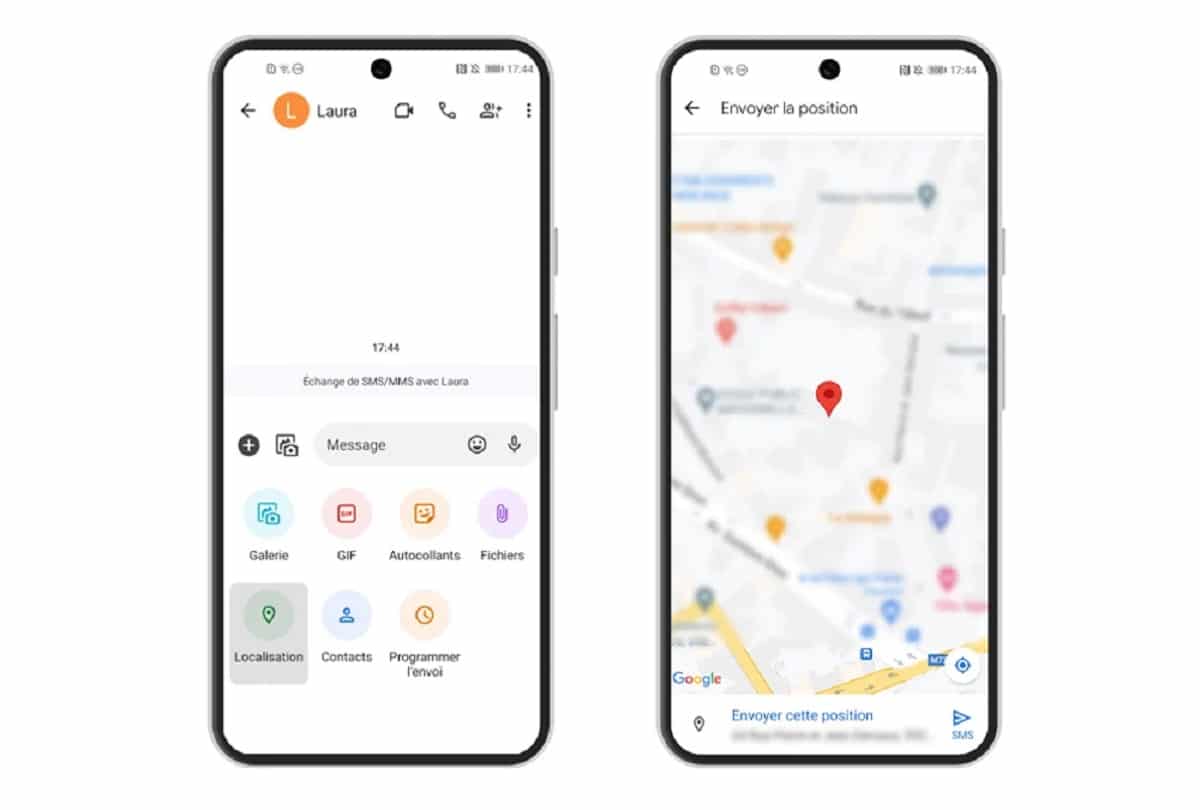
If you have an Android smartphone, you can use the Google Messages app to send your location:
- Open Google Messages: If you don’t have it, it’s available for free on the Google Play Store and works on devices running Android 5.0 or later.
- Start a Conversation: Open an existing chat or create a new one with the person you want to contact.
- Tap the “+” Icon: Located at the bottom left corner of the screen.
- Select “Location”: This will open a map showing your current position.
- Verify Your Location: Make sure the map pin accurately represents where you are.
- Send Your Location: Tap the send button, and a link to your location on Google Maps will be shared.
The recipient can open this link on any smartphone, whether they use Android or iOS, making it universally accessible.
For iPhone Users

If you’re using an iPhone, the process is just as straightforward:
- Open the Messages App: This is the default texting app on all iPhones.
- Choose a Conversation: Select an existing chat or start a new one.
- Tap the “A” App Icon: Located next to the text input field.
- Select “Maps”: From the app options that appear.
- Tap “Send My Current Location”: Your current location will be sent as an Apple Maps link.
- Confirm and Send: Ensure the location is correct, then tap send.
Even if the person you’re messaging uses a different type of phone, they’ll still be able to view your location, as Apple Maps links can be opened in web browsers or other map applications.
Using WhatsApp or Messenger to Share Your Location
In addition to traditional text messages, you can use popular messaging apps like WhatsApp or Facebook Messenger to share your location. This can be especially useful if you’re already communicating through these platforms.
Sharing Location on WhatsApp
- Open a Chat: Go to the conversation with the person you need to contact.
- Tap the Attach Icon: It looks like a paperclip on Android or a “+” on iPhone.
- Select “Location”: You’ll be given options to share your live location or current location.
- Choose Your Option:
- Live Location: Shares your real-time movement for a set period (15 minutes, 1 hour, or 8 hours).
- Current Location: Sends a snapshot of where you are at that moment.
- Send: Tap the send button to share.
Sharing Location on Facebook Messenger
- Open a Conversation: Select the contact you want to message.
- Tap the Four Dots Icon: Located near the text input area.
- Select “Location”: A map will appear.
- Share Live Location: Tap the option to share your live location for 60 minutes.
- Send: Your location is now shared, and the recipient can follow your movements.
Why It’s Important to Know How to Share Your Location
Being able to quickly share your location can make a significant difference in an emergency. I recall a time when a family friend got disoriented while jogging in a new city. She used her phone to send her location via WhatsApp, and we were able to find her in no time.
Emergency services also benefit from precise location information. According to the Federal Communications Commission (FCC), providing exact coordinates can significantly reduce response times in critical situations.
Tips for Effective Location Sharing
- Ensure Location Services Are Enabled: Before an emergency happens, make sure your phone’s GPS is turned on. You can usually find this in your phone’s settings under “Location” or “Privacy.”
- Keep Your Phone Charged: A dead battery won’t help in an emergency. Consider carrying a portable charger if you’re going somewhere remote.
- Practice Ahead of Time: Familiarize yourself with the steps to share your location so you can do it quickly when needed.
- Inform Trusted Contacts: Let close friends or family know that they might receive a location message from you in case of an emergency.
Similar Posts
- How to send your location via text in an emergency – a step-by-step guide ?
- How to send your location by text in case of an emergency ?
- How to share your location via text in an emergency
- Protect Your Phone from Prying Eyes with This Must-Have Setting!
- Alert: WhatsApp Account Hacking Begins With This Name in Your Messages!

Felix Marlowe manages Belles and Gals’ vibrant social media platforms. With expertise in social engagement and viral marketing, Felix creates content that sparks conversation and keeps followers coming back for more. From celebrity news to trending challenges, Felix makes sure our social media stays at the forefront of pop culture.


