

Have you ever found yourself needing to convert a PDF file into a Word document, only to be frustrated by the limited free options or the hassle of downloading unfamiliar software? I’ve been there too. Whether it’s for school assignments, work reports, or personal projects, having a reliable and free method to make this conversion seamless is a game-changer. Fortunately, I discovered an incredibly simple and entirely free way to do just that using nothing but a Gmail account and Google’s suite of tools.
He thought he was rescuing a sheep—but it turned out to be something else
This bizarre French customer habit is driving shop owners crazy
The PDF Conundrum: Why You Need to Convert
PDFs are fantastic for preserving the layout and integrity of documents, making them perfect for sharing information without worrying about formatting issues. However, the downside is that editing a PDF can be cumbersome if you don’t have the original file or the right software. This is where converting PDFs to Word documents becomes essential. Imagine needing to tweak a report, update a resume, or extract specific information without starting from scratch—that’s the power of conversion.
My Simple and Free Solution Using Google
Recently, I stumbled upon a method that not only simplifies the conversion process but also ensures your documents remain secure. The best part? It’s completely free and requires nothing more than your Gmail account. Leveraging Google Drive and Google Docs, you can effortlessly convert any PDF into an editable Word document without ever downloading additional software.
Step-by-Step Guide: Convert PDF to Word via Gmail
Here’s how you can convert a PDF to Word using your Gmail account in just a few easy steps:
- Access Google Drive:
- Open your Gmail account and navigate to Google Drive by clicking on the grid icon in the upper right corner and selecting “Drive.”
- Upload Your PDF:
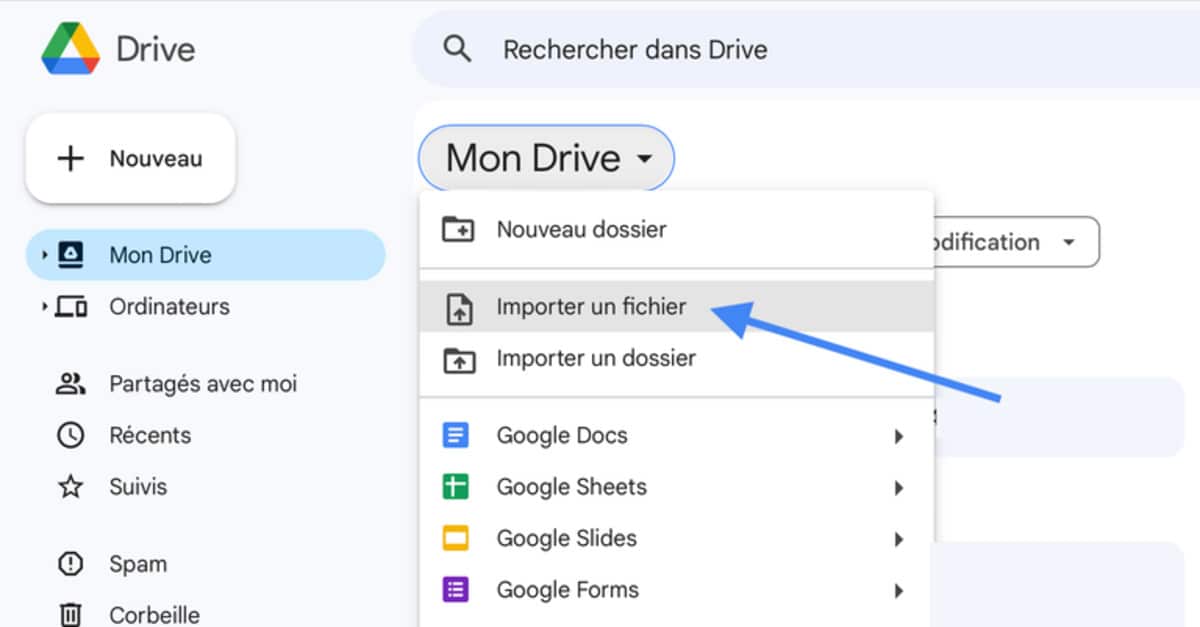
- In Google Drive, click on the “New” button and choose “File upload.” Select the PDF file you wish to convert from your computer.
- Open with Google Docs:
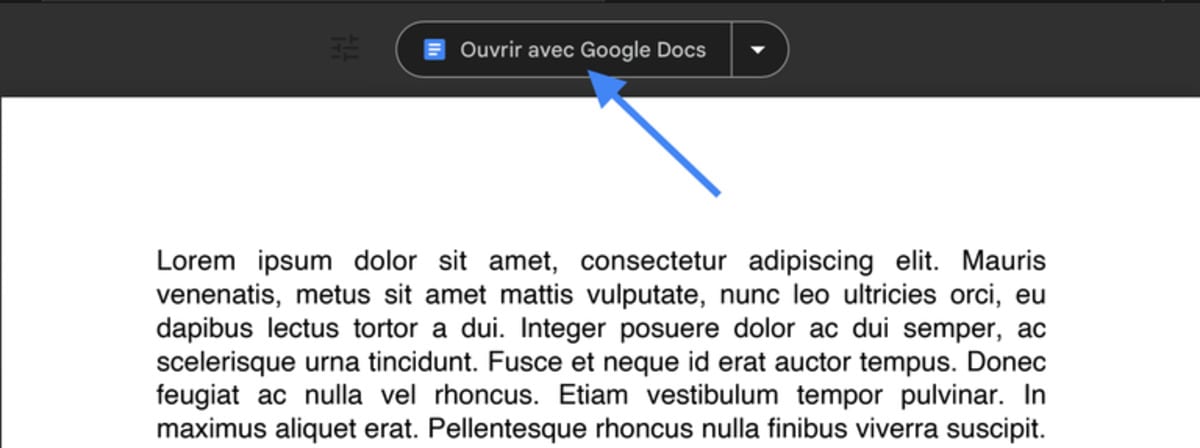
- Once the PDF is uploaded, right-click on the file in Google Drive, hover over “Open with,” and select “Google Docs.” This action will automatically convert your PDF into an editable Google Docs document.
- Edit and Save:
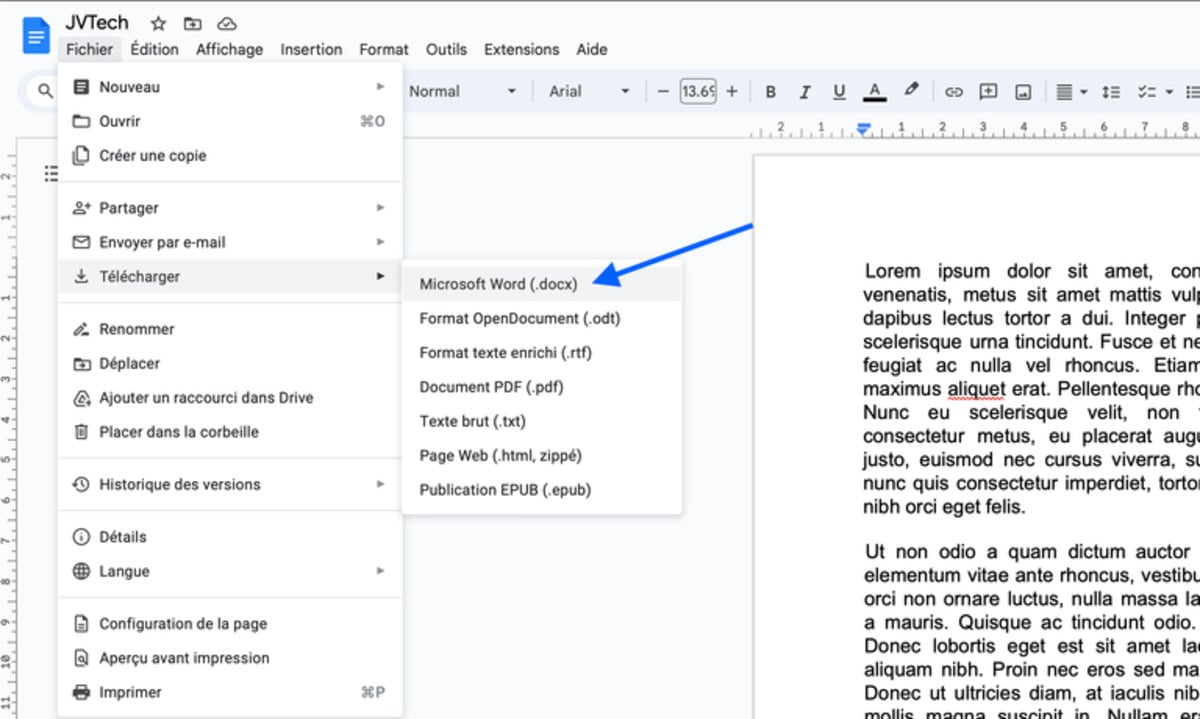
- Make any necessary edits directly within Google Docs. When you’re ready to save the document as a Word file, go to “File” > “Download” > “Microsoft Word (.docx).” Your converted file will now be downloaded to your computer in Word format.
Why This Method is So Effective
This method stands out for several reasons:
- No Additional Software Needed: Everything is handled within your browser using Google’s trusted services, eliminating the need to download potentially insecure third-party applications.
- Preserves Formatting: Google Docs does an impressive job of maintaining the original layout and formatting of your PDF, ensuring that your document looks just as polished in Word.
- Accessible Anywhere: Since it’s cloud-based, you can perform this conversion from any device with internet access, whether you’re at home, in the office, or on the go.
- Enhanced Security: By using Google’s secure platform, your documents are protected during the conversion process, giving you peace of mind that your sensitive information remains safe.
Final Thoughts: Embrace Google Docs for Your Needs
Converting PDFs to Word documents doesn’t have to be a frustrating experience filled with hidden costs and complicated steps. With just a Gmail account and Google Drive, you can effortlessly transform your PDFs into editable Word files in minutes. This method not only saves you time and money but also ensures that your documents remain secure and well-formatted.
Next time you’re faced with the task of editing a PDF, give this Google-powered solution a try. It’s a straightforward, reliable, and free way to keep your productivity flowing without any unnecessary complications. Personally, I’ve found it to be an indispensable tool in my daily workflow, and I’m confident it can be the same for you.
Similar Posts
- Danger Looms on Google’s First Page: What You Need to Know Now!
- Free Official Document Scam Traps Increasing Number of Americans!
- Biggest Scam Ever Targets Google Users – How to Spot It!
- 70% of People Fall Prey to Undetected Bank Account Fraud: Here’s the Only Way to Check!
- Be Careful—A Simple Google Search on Cats Could Lead to an Unwanted Virus Download

Felix Marlowe manages Belles and Gals’ vibrant social media platforms. With expertise in social engagement and viral marketing, Felix creates content that sparks conversation and keeps followers coming back for more. From celebrity news to trending challenges, Felix makes sure our social media stays at the forefront of pop culture.


