He thought he was rescuing a sheep—but it turned out to be something else
This bizarre French customer habit is driving shop owners crazy
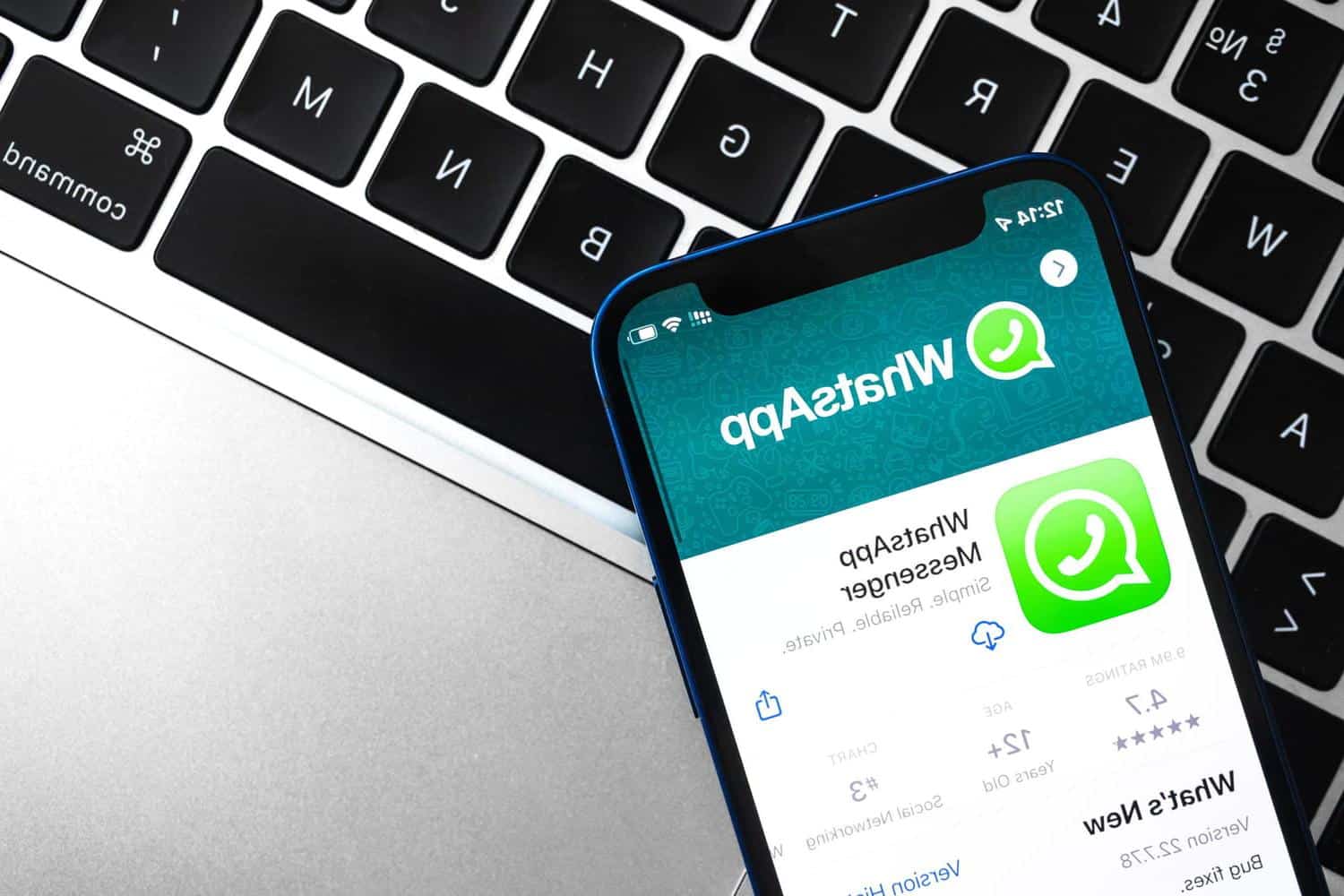
Unbeknownst to many, WhatsApp stores a vast amount of data on our phones. Consequently, the app alone can take up several gigabytes and consume excessive storage space.
Running out of storage space on your smartphone can be a real headache: you can no longer take photos or videos, download new apps, and worst of all… you have to make tough choices! To free up memory, cleaning up and deleting a large number of files is often necessary. Some transfer these files to other devices, while others part with them reluctantly, but one thing is certain, it’s no fun for anyone.
It’s important to understand that certain apps occupy a lot of space on our phones because they store data without our knowledge. WhatsApp, a messaging service used daily by millions, is a prime example. The app itself, along with its data and cache, can add up significantly. Altogether, WhatsApp can use up dozens of gigabytes (GB) of storage space. But it’s not just the messages that take up space; it’s primarily the multimedia files. In conversations, photos, videos, and GIFs are abundant. And as many users have likely noticed, these images automatically save to the phone’s gallery, whether you like it or not. This default setting is the main culprit that uses up your phone’s memory.
Easy Fix to Save Space
Fortunately, turning this feature off is straightforward: simply go to the “Chats” section in the settings menu of WhatsApp. For iPhone users, you need to uncheck the “Save (Photos)” option, which prevents file duplication. For Android users, the process is similar, but the option is named “Media Visibility.” By disabling it, images remain viewable within the app but are no longer automatically copied to the phone’s photo library. However, there’s a slight annoyance for Android users: if you delete photos or videos from the gallery, they will also disappear from the WhatsApp conversation. They remain accessible, but you would need to download them one by one if you want to view them. Disabling this feature can save you a few MB or even GB and also shut the door on scammers who exploit it to send files and steal sensitive data.
Another Simple Tip
If the above solution doesn’t free up enough space, there’s another tip just as easy. Head back into the settings, this time to the “Storage and data” tab, then “Manage storage.” You can quickly identify the largest files (over 5 MB) and the most storage-intensive chats, and decide what you want to delete. On iPhones, the images will remain available in Photos, allowing you to free up several GB in just a few seconds, without losing precious files.
However, be aware that this method only works on iOS smartphones. It’s also possible on Android, but since files are linked on these devices, they will be removed from the gallery after being deleted from the app. This is a handy trick for those who frequently exchange photos and videos with friends or family.
Similar Posts
- WhatsApp’s Default Setting Opens Doors for Scammers: What You Need to Know
- A Better Way to Free Up Space on Your Phone Without Deleting Photos—Here’s What to Do Instead
- These 3 Android Apps Are Secretly Stealing Your Personal Data
- Experts Warn: Apps Should Never Access This Phone Setting!
- Uninstall these 12 Android apps that record your conversations

Felix Marlowe manages Belles and Gals’ vibrant social media platforms. With expertise in social engagement and viral marketing, Felix creates content that sparks conversation and keeps followers coming back for more. From celebrity news to trending challenges, Felix makes sure our social media stays at the forefront of pop culture.